Data Recovery, recovering Hard Drive data, RAID data recovery

After-Hours Emergency Service (647) 448-5302

MacBook Air SSD Failures

MAC Air SSD
SSD removed from a MacBook Air

Over the last 5-6 months we’ve received an influx of inaccessible Solid State Drives (SSD) from MacBook Air laptops. Apparently Apple is aware of this problem and they are replacing them under warranty. The laptops effected were sold between June 2012 and June 2013.

Once removed, these SSDs are easily identified by the large “Toshiba” controller chip residing on the left side of the SSD as shown in the picture below. However Apple considers the removal as something not do-able in the field. For information on their replacement program, please visit this link MAC SSD replacement.

As for data recovery from these units, you had better get your wallet out. Typical costs for us to recover your data range from $2000-2500. Costs could be even higher depending on the nature of the data required, and due to the complexity of these recoveries we typically require 3 weeks or even more. We are getting faster but the rebuilding of SSD devices is very labor intensive.

If you have one of these Solid State Drives in your system, we suggest you keep all your important data backed up to at least one additional storage device or hard drive.


What is a CRASHED hard drive?

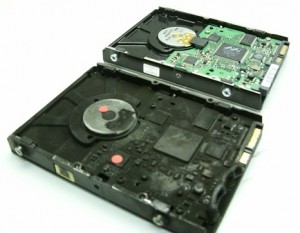
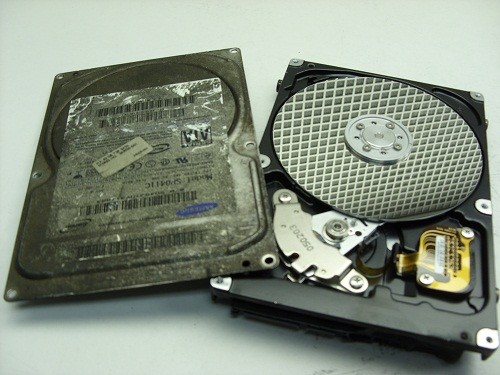
We hear the words “my hard drive has crashed” at least a hundred times a month and yet it is seldom what we discover when we open the lid of someones “crashed” hard drive. The picture below shows two Seagate 500 GB hard drives we recently received for data recovery. Both drives were declared crashed by their owners! However only one appears to be physically crashed.

data recovery toronto

The drive on the left is in pristine condition. The disks are extremely shiny and consistent across the entire surface of the disk surface. The clients problem was determined to be a bad PCB or printed circuit board.

The drive on the right is not so pristine and has physically CRASHED! The smooth shiny disk surface has been scored and ringed by constant contact with the heads while the disks were spinning. This amount of damage could only occur if the drive was left running for a long period after the initial contact damage. Click on the picture for a closer more shocking look.

The drive on the left should be recoverable. The drive on the right is NOT recoverable.

If you require a price estimate on our data recovery services, follow this link for a quick reply … Canada’s Data Recovery Experts

Levels of Data Recovery for Hard Drives

Toronto, Ontario, Canada.

Data Recovery Service Providers often categorize hard drive data recoveries into different levels and Memofix Data Recovery Services is no exception. While we don’t provide flat level pricing to individual consumers, we often provide our MACC or Memofix Authorized Care Centre partners with flat rate pricing based on three categories or levels of data recovery. Our definitions of these levels are described below and can be helpful in preparing yourself for the costs and degree of difficulty involved with each increasingly complicated recovery scenario.

LEVEL 1

Level 1 is the lowest level and requires the least expertise and resources. Level 1 means the hard drive is still 100% fully functional. It is recognized by the computer and if the user was to reformat their hard drive they would be able to continue to use it, albeit without their original data.

Level 1 type problems are NOT the fault of a failing hard drive. Level 1 type problems ARE the result of damage, corruption or deletion of all or part of a hard drive’s file system. These actions could have been done deliberately, accidentally, or even unknowingly. The file system is “actual data” written on the hard drive and for our purposes, it can be thought of as a big index that points to the locations on the hard drive where a particular file or folder is stored.

If that index is damaged or corrupted, the operating system may not be able to locate a particular file or folder. Or if the index is for a file or folder used by the operating system, then the drive may not be able to boot or be accessed using conventional methods.

Examples of Level 1 type problems would include;

  • Deleting a file or folder
  • Formatting your hard drive
  • Restoring the operating system
  • Boot Virus Infection

Many level 1 data loss situations can be remedied by a tech-savvy end-user using readily available data recovery software. However there are precautions and the peace of mind that only a professional data recovery service company can give you, so if your data is absolutely CRITICAL to retrieve, do NOT attempt this. However, if you can afford to take the risk or just can’t afford the cost of professional help please read an earlier blog I wrote on the subject of do-it-yourself data recovery … http://www.memofixdatarecovery.com/blog/index.php/diy-data-recovery-do-it-yourself/


LEVEL 2

Level 2 is the middle level and requires more expertise and resources then level 1. Level 2 means the hard drive is not functioning properly but the problem(s) will not require work to be done in a clean room environment. Level 2 data loss situations are normally something an end-user cannot solve themselves. Nowadays even switching a PCB is not a simple process, as the drives HDA (head disk assembly) is fine tuned to work with the same PCB it was manufactured with. In fact, the drive’s PCB contains stored values which determine critical settings used by the heads to position and read data optimally. PCBs from the same model hard drive and with the exact firmware can NOT be simply swapped out unless these stored values are first transferred to the new replacement PCB.

Examples of Level 2 type problems would include;

  • Defective PCB or Printed Circuit Board electronics
  • Overwrite or corruption to the hard drive’s “system area” (special files used exclusively by the hard drive for its own operation and maintenance.
  • Corruption to the drive’s firmware.
  • Excessive read errors or hard media defects that are not the result of weak or bad heads.
  • Issues with full disk encryption or file encryption


LEVEL 3

Level 3 problems indicate a major failure with the hard disk drive. Level 3 means the hard drive WILL require extensive cleanroom work to enable any recovery. Typical level 3 recoveries involve head crashes where the drive’s heads have come into contact with the disk surfaces. This usually causes damage to the both the disks and the heads. To recover any data the drive must first be made functional again. First we purge the sealed head disk area of any free particles and then we replace the heads from a new and exact version of the original hard drive. Then we attempt to copy off the used areas of the bad hard drive. During this process the heads will often go bad again due to the damage on the disks. So we must repeat this procedure until we have imaged or copied off all of the used areas on the bad hard drive. This process can take 2 days to 2 months in extreme cases. In the worst cases, the damage is so severe that newly installed heads are instantly destroyed and no recovery will be possible. Another common level 3 scenario occurs when a hard drive is dropped and the spindle motor that spins the disks is seized. This requires the transfer of the disks onto a new motor and typically requires multiple head xplants as well.

Examples of Level 3 type problems would include;

  • Damaged heads and disks
  • Seized or non-spinning spindle motors
  • Stiction, where the heads have become stuck to the disks
  • Fire or water damage
  • Dropped, knocked over, bumped, or physically abused hard drives


So to be brief and to summarize,

  1. If a client or user has deleted a file/folder or reformatted AND their hard drive was and is still working perfectly, then it is a LEVEL1 data recovery scenario.
  2. If the drive was physically abused in any way, or if it makes any unusual noises it is likely a LEVEL 3 data recovery scenario.
  3. For anything else, a LEVEL 2 data recovery scenario is most likely.

In a future blog we will discuss USB flash, camera cards and SSD data recovery levels.

Data Recovery & House Fires

If you’ve ever been the victim of a house fire, you understand what a mess it can create. But interestingly enough, a lot of the mess can be attributed to the actions used to extinguish the fire, versus the fire itself. In particular, the spraying of water and other firefighting liquids can create a wet soggy environment which is definitely not friendly for electronic devices such as your computer or the hard disk drive that resides inside.

Recovering data from hard drives which have been exposed to heat, fire, and water is not as exponentially difficult as some data recovery companies may lead you to believe. Even a hard drive as badly burnt as the one below was a fairly easy recovery for our skilled data recovery technicians located in Toronto. Notice the difference in color due to the soot and smoke, as well as the melted PCB and plastic connectors.

Will my data be recoverable after a fire?


But what really determines if the data will be recoverable or not? We can replace melted PCBs. We can replace damaged head assemblies. We can rebuild missing NVRAM data. But it is the condition of the disks or platters that are most important when determining the chances of successfully recovering the data on any damaged hard drive. In most of the fire cases we see, the hard drive’s pressure equalization valve and lid seal are successful in protecting the disks from exposure to the fire or fire retardant liquids. In those where the seal was penetrated we may find some water residue which can usually be cleaned successfully.

And when we open this fire burned drive, we see a pristine gleaming disk with no apparent water, soot, or other residues being present. And as is typical with most house fires the heat was not severe enough to warp or bend the disk(s) in anyway. So once we replaced or rebuild the damaged components we were able to get the hard drive functioning long enough to create a sector by sector image of the hard disk drive. We then successfully recovered all the client’s files from this image.


Inside a fire burned or well done hard drive.

Not all recoveries are as simple as this burn victim, but our extensive expertise allows us to successfully recover data from over 90% of the burned hard drives we receive for data recovery. If your hard drive is the victim of fire and you need your data recovered, we would recommend that you seal the disk drive in a zip lock baggie as soon after the fire as possible. This will prevent any water residues from evaporating and leaving mineral deposits on the disk surfaces which may hamper our recovery attempts. And remember, even if things look grim, we can often put a smile back on your face. www.memofixdatarecovery.com


Top 5 Worst Mistakes A HDD User Can Make!

Or Mistakes I See Every Day That Can Be Easily Avoided
A Diatribe by Rob Armstrong, Memofix Data Recovery Engineer

Every day in Data Recovery labs across the globe, hard drives (HDDs) are received from people who were convinced they knew what to do when their HDDs failed. Unfortunately, most have been horribly misinformed by friends, family, sweaty nightmare, rumor and/or innuendo, or even worse poor Search Engine results written by non-professionals who think they know HDDs inside and out. The truth is, I have been in the Data Recovery industry for close to seven years, and I learn more about hard drives and each manufacturer and model EVERY DAY. It is not a simple or straightforward undertaking, and is unfortunately one of those things in life that is best left up to the professionals…for no other reason than most, if not all, Data Recovery Labs have a free evaluation service. If you attempt to “fix” your HDD at home, you could conceivably damage the drive beyond the point where it can be recovered – even by an accredited lab.
So here is the advice of a Data Recovery Tech who just wants the public to be better informed as to what they should do when the unthinkable happens (and yes, I am aware that if people heed my advice, we will be receiving fewer cases for recovery):

1. If the HDD is Dropped or Physically Traumatized in Any Way

Whether the device is running or not, once dropped, you should not apply power again. If you are truly concerned with not losing your data – send it in to a data recovery lab right away. Some would advise to apply power just once to see if you can get access – even for a short window of time – to copy off everything on there before it fails for good. Here’s the problem with that thinking: if you dropped the drive and the heads inside the drive physically bent due to the impact, then when you apply power, the heads now come into physical contact with the platters (whereas before the trauma they floated above the surface by several microns) and your data is scraped off at 7200 rotations per minute – becoming unrecoverable.

2. If You Have Sporadic Access to Your HDD

While working, you see the “hourglass” icon come up…too many times…or it takes waaaay too long to save, or sometimes your HDD boots to Windows OK, sometimes it doesn’t. Your HDD defaults to the “blue screen of death” sometimes – but not every time – you boot. These could be indicators that your drive is failing either physically or logically as bad sectors proliferate (reported as “Read Errors”) or your hardware may be slowly failing. In any case, the next time you have access to your HDD, COPY IT! All of your critical files and folders, profiles, e-mail documents, anything you deem important. You may never get another chance, and I’ve heard of many instances where consumers just kept rebooting until they had access – then did not back up once they have it. And no - putting your HDD into a refrigerator is not going to help.

3. If a Drive Fails in Your RAID Array

Hard drives can fail at any time without any type of warning (I know – you didn’t want to hear that), and therefore quite often, one drive in a RAID array will fail well before the others. Obviously, the way in which the data is written to a RAID makes it extremely simple to rebuild should one drive fail (with parity, each drive’s contents are re-buildable using the other drives). However, when multiple drives fail simultaneously – send the array into a Data Recovery lab. Once again, you will get a FREE evaluation, which will determine EXACTLY what is wrong with the RAID and what it will take to recover the data. Too many times have we seen RAID arrays where the consumer has replaced too many drives, kept the power on damaged drives too long, or “accidentally” reformatted the whole RAID after rebuilding didn’t work right away. Again, how important is your data?

4. If You Use One External for Both Mac and PC

Stop it. You just stop that right now. In this day and age, external HDDs are cheap enough to buy one for each of your O/S’s, and moving your HDD from one system to the other and back can cause your HDD to fail. In the end, it comes down to filesystem difference and the incompatibility of the two O/S’s. The way data is stored and written in a Mac environment is VERY different from the way a PC writes, and most systems have a difficult time resolving both O/S’s. You can’t mount a Mac drive in Windows (unless using a third-party program), and vice-versa, so you shouldn’t be using the same HDD with both systems. I’m sure some of you will yell and scream after hearing this advice, and have used one external HDD for both Mac and PC without any problems – but if the possibility exists that you will lose everything, isn’t it worth two externals?

5. If You Use Your USB Device for Storage

Again, stop it. Years ago, I assisted a Data Recovery company with customer service while also working in their lab, and many an argument was had with consumers over the definition of a “backup”. A backup is a secondary copy of your data. That means it exists not only in two locations or folders, but on two completely separate drives. This is the only way to become completely secure in the knowledge your data is safe from loss. As such, USB devices (aka thumb drives, USB sticks) should be used only for transferring data from one HDD to another immediately. Too many USB devices have been received that were smashed because it ended up forgotten and on the bottom of the purse, or lost and chewed up by the family dog (no, really). Do not store any data on your USB device that is critical for any extended period of time – unless you have a true backup on another HDD.

So there you have it. The early days of Data Recovery were a lot like the introduction of Science into public discourse hundreds of years ago. There were scientific methods we were using along with basic computer know-how to recover data – proven methods – but there was also a “fringe” element to recovery, mixing science and…guesswork. We would adjust the lid on a drive, believing that by doing so, the airflow inside the drive or magnetic field would affect the voice coil to get better results. I even remember sitting at my workstation all day and holding a drive, because I believed that if I let go of the drive it would stop working – some superstitious nonsense about my personal electromagnetic field affecting the HDD. Basically if the method worked for one person, we would all try it – regardless of how little sense it made. That was then.
Now, we as Data Recovery Technicians know exactly how to recover data from any HDD, using proven scientific method – no more guesswork. And that is why you should ignore rumor and poor forum scuttlebutt when it comes to the recovery of your critical data, and just send the drive in for a free evaluation. When the unthinkable happens. Which it shouldn’t, now that I’ve given you 5 ways to avoid it!

Data Recovery & Encryption, foe or friend ?

Toronto, Ontario, Canada.

To most of us, the word “encryption” conjures up images of spies and secret disks containing information that must be guarded at all costs. Few of us realize that we all rely on and use encryption almost every day in our normal lives. Whether making a cell call, sending an email, buying something with your debit card, or accessing the web wirelessly, we are using and being protected by this not so simple process.

What is encryption? Encryption is the process used to transform and disguise data so that it is unreadable or undecipherable to anyone without a pre-determined secret code or password. Basically, the data to be encrypted is sent through an elaborate algorithm using the secret code or password to scramble the data into indistinguishable rubbish.

Please note, that password protection is NOT encryption. Password protection “may” prevent access to the data, but it does not alter the actual data. Password protection can be easily bypassed.

Encryption has also become common place for protecting data on computer based storage device like hard drives and USB flash sticks. Encryption can be used to protect an entire volume, a folder or even a single file. There are several distinct implementations available:

  • SOFTWARE, Users can buy or use free encryption programs that make it possible to encrypt files, folders or even their entire hard drive or flash device using software routines to intercept and modify the data on the fly. The entire encrypting and decrypting process is handled by your computer’s CPU or processor. Popular examples include SafeGuard, SecureDoc, PGP, TrueCrypt and Safeboot. Starting with XP Professional, Microsoft includes a built in folder and file encryption feature called Encrypting File System or EFS for short. Software encryption methods are popular as they are inexpensive and can be implemented on any existing storage device. However, they are generally much slower, typically 20% slower than hardware based methods.
  • HARDWARE, There are external hard drive devices that use a standard hard drive connected through a “hardware based” encryption interface board. In many cases this encryption process is performed without the user even being aware. Many Western Digital external boxes use this method allowing 100% data protection if the drive is ever removed from the enclosure and its encrypting interface board. Hardware techniques are considerably faster than software methods.
  • SELF ENCRYPTING, Users can now buy hard drives and SSDs that utilize on-board hardware to encrypt and decrypt the data on the fly. These devices encrypt the entire contents of a storage device and are referred to as SEDs or self-encrypting devices or drives. These drives carry a premium price tag but are the ultimate in safety and speed. Some hard drive manufactures such as Seagate may also refer to this self-encrypting as FDE or Fixed Disk Encryption.

Why use encryption? Most of us have heard a story or two about personal financial data falling into the wrong hands due to a corporate laptop being stolen or lost. Or the often recreated news story about reporters picking computers out of the trash and finding “valuable” info left abandoned. Yes it does happen, as someone who regularly buys previously used hard drives can attest. But just how many of us actually have super sensitive data on our computers in the first place? If you are one of the few that must keep your data from prying eyes, then by all means encrypt away. But if you don’t need to … DON’T!

Besides the potential loss in performance, there are several other reasons not to use encryption.

  • LOSS OF PASSWORD OR KEYFILE: If you can’t remember the password or can’t find the keyfile you made 3 years ago, you will NOT get your data back, period. While there are numerous recovery techniques for decrypting or accessing encrypted volumes, they all require some form of a username/password combo or a special key file created by the encryption software.
  • OPERATING SYSTEM FAILURE: If an encrypted drive’s operating system becomes corrupted, perhaps due to a simple virus and the drive is no longer bootable or accessible, there is no easy way to repair the file system and regain access. To resolve the issue you must first decrypt the entire volume. Again you will need a user/password or keyfile (and specialized programs) to perform such an operation. Once the volume is decrypted, the file system damage can then be repaired using the file system’s own repair utilities, i.e. chkdsk.exe
  • READ ERRORS: Over time storage device can easily develop read errors and if these read errors affect the operating system files or an area used to store pertinent encryption parameters, it can become impossible to access your data. As above, complicated procedures will be required to decrypt the volume and access the data. A single read error can stop everything.

Is encryption breakable? Theoretically, with enough computing power and enough time, any encryption scheme can be broken. But if the process takes a thousand years, the value of the data may be very limited. And fortunately the increase in computing power to break the key is easily outstripped by the exponential increase in difficulty by adding an additional bit to the encryption key. Presently, most credit card companies recommend transactions using 128 bit encryption keys. 128 bits keys are considered by the experts to be safe until about 2030 although some recommend 256 bit keys due to the advent of the “quantum computer” where theoretically the difficulty may be halved.

There are 2 basic ways of breaking encryption. The hacker either breaks the password by guessing the password or the hacker uses crypto analysis to guess the message based on the natural frequency and composition of the characters in a given language. To guess a password is often very easy as people tend to use real words and they are often chosen from an individual’s personal life or interests. Even brute force using a pre-created word list is often successful. To be sure your password can’t be compromised in your lifetime it has been recommended that your password should be at least 20 random characters. Of course few of us can remember such a long sequence.

In the real world, getting around the encryption is often much easier than either of these methods. Keyboard recorders are simple to install devices that can be used to record all the keystrokes of a user including their passwords. Or perhaps a hidden camera could provide the same results. Another technique can be utilized if a user leaves their computer unattended, as the contents of RAM memory are not encrypted and there are ways to dump the RAM contents and retrieve a password. Additionally, a group of researchers/hackers recently discovered that the contents of RAM memory do not disappear as soon as the power is removed. In fact if the RAM chips can be kept cool, the data may be retained for 10 minutes or longer. Theoretically reading the RAM contents could be possible even if the power is turned off. But this isn’t really so much about breaking the password as it is about stealing the password.

Can Memofix recover your encrypted data? Usually YES, but we need your keyfile or username/password combo … PERIOD. If we could recover your encrypted data without these credentials then what would be the point of using encryption in the first place.

We regularly recover data encrypted with PPG, Safeboot, SafeGuard, SecureDoc, EFS and most other software encryption programs. We are also very successful recovering hardware encrypted hard drives where the encryption is performed by an interface board separate from the storage device. i.e. the popular Western Digital My Book.

However, SEDs or Self Encrypting Devices present a real problem. It is estimated that by 2017 over 80% of all hard drives and all SSD or Solid State Drives will be SED or self-encrypting devices. There are NO decryption methods available for these SEDs and if consumers and businesses are to adopt these new SEDs, this concern must be addressed by the manufacturers.

Encryption is here to stay whether you need it or not. If you do choose to encrypt your data, we suggest you always create a key file and store it in a secure location. Additionally, record all usernames and passwords in a secure location and until the SED manufactures create a solution for authorized decrypting, we suggest you steer clear of their products or be sure to regularly backup.

As always, when things don’t quite go as planned remember your friends at Memofix http://www.memofixdatarecovery.com/ are always willing to help!