Posts Tagged ‘recover hard drive’

MacBook Air SSD Failures

Wednesday, March 19th, 2014
MAC Air SSD

SSD removed from a MacBook Air

Over the last 5-6 months we’ve received an influx of inaccessible Solid State Drives (SSD) from MacBook Air laptops. Apparently Apple is aware of this problem and they are replacing them under warranty. The laptops effected were sold between June 2012 and June 2013.

Once removed, these SSDs are easily identified by the large “Toshiba” controller chip residing on the left side of the SSD as shown in the picture below. However Apple considers the removal as something not do-able in the field. For information on their replacement program, please visit this link MAC SSD replacement.

As for data recovery from these units, you had better get your wallet out. Typical costs for us to recover your data range from $2000-2500. Costs could be even higher depending on the nature of the data required, and due to the complexity of these recoveries we typically require 3 weeks or even more. We are getting faster but the rebuilding of SSD devices is very labor intensive.

If you have one of these Solid State Drives in your system, we suggest you keep all your important data backed up to at least one additional storage device or hard drive.


Top 5 Worst Mistakes A HDD User Can Make!

Friday, April 13th, 2012

Or Mistakes I See Every Day That Can Be Easily Avoided
A Diatribe by Rob Armstrong, Memofix Data Recovery Engineer

Every day in Data Recovery labs across the globe, hard drives (HDDs) are received from people who were convinced they knew what to do when their HDDs failed. Unfortunately, most have been horribly misinformed by friends, family, sweaty nightmare, rumor and/or innuendo, or even worse poor Search Engine results written by non-professionals who think they know HDDs inside and out. The truth is, I have been in the Data Recovery industry for close to seven years, and I learn more about hard drives and each manufacturer and model EVERY DAY. It is not a simple or straightforward undertaking, and is unfortunately one of those things in life that is best left up to the professionals…for no other reason than most, if not all, Data Recovery Labs have a free evaluation service. If you attempt to “fix” your HDD at home, you could conceivably damage the drive beyond the point where it can be recovered – even by an accredited lab.
So here is the advice of a Data Recovery Tech who just wants the public to be better informed as to what they should do when the unthinkable happens (and yes, I am aware that if people heed my advice, we will be receiving fewer cases for recovery):

1. If the HDD is Dropped or Physically Traumatized in Any Way

Whether the device is running or not, once dropped, you should not apply power again. If you are truly concerned with not losing your data – send it in to a data recovery lab right away. Some would advise to apply power just once to see if you can get access – even for a short window of time – to copy off everything on there before it fails for good. Here’s the problem with that thinking: if you dropped the drive and the heads inside the drive physically bent due to the impact, then when you apply power, the heads now come into physical contact with the platters (whereas before the trauma they floated above the surface by several microns) and your data is scraped off at 7200 rotations per minute – becoming unrecoverable.

2. If You Have Sporadic Access to Your HDD

While working, you see the “hourglass” icon come up…too many times…or it takes waaaay too long to save, or sometimes your HDD boots to Windows OK, sometimes it doesn’t. Your HDD defaults to the “blue screen of death” sometimes – but not every time – you boot. These could be indicators that your drive is failing either physically or logically as bad sectors proliferate (reported as “Read Errors”) or your hardware may be slowly failing. In any case, the next time you have access to your HDD, COPY IT! All of your critical files and folders, profiles, e-mail documents, anything you deem important. You may never get another chance, and I’ve heard of many instances where consumers just kept rebooting until they had access – then did not back up once they have it. And no - putting your HDD into a refrigerator is not going to help.

3. If a Drive Fails in Your RAID Array

Hard drives can fail at any time without any type of warning (I know – you didn’t want to hear that), and therefore quite often, one drive in a RAID array will fail well before the others. Obviously, the way in which the data is written to a RAID makes it extremely simple to rebuild should one drive fail (with parity, each drive’s contents are re-buildable using the other drives). However, when multiple drives fail simultaneously – send the array into a Data Recovery lab. Once again, you will get a FREE evaluation, which will determine EXACTLY what is wrong with the RAID and what it will take to recover the data. Too many times have we seen RAID arrays where the consumer has replaced too many drives, kept the power on damaged drives too long, or “accidentally” reformatted the whole RAID after rebuilding didn’t work right away. Again, how important is your data?

4. If You Use One External for Both Mac and PC

Stop it. You just stop that right now. In this day and age, external HDDs are cheap enough to buy one for each of your O/S’s, and moving your HDD from one system to the other and back can cause your HDD to fail. In the end, it comes down to filesystem difference and the incompatibility of the two O/S’s. The way data is stored and written in a Mac environment is VERY different from the way a PC writes, and most systems have a difficult time resolving both O/S’s. You can’t mount a Mac drive in Windows (unless using a third-party program), and vice-versa, so you shouldn’t be using the same HDD with both systems. I’m sure some of you will yell and scream after hearing this advice, and have used one external HDD for both Mac and PC without any problems – but if the possibility exists that you will lose everything, isn’t it worth two externals?

5. If You Use Your USB Device for Storage

Again, stop it. Years ago, I assisted a Data Recovery company with customer service while also working in their lab, and many an argument was had with consumers over the definition of a “backup”. A backup is a secondary copy of your data. That means it exists not only in two locations or folders, but on two completely separate drives. This is the only way to become completely secure in the knowledge your data is safe from loss. As such, USB devices (aka thumb drives, USB sticks) should be used only for transferring data from one HDD to another immediately. Too many USB devices have been received that were smashed because it ended up forgotten and on the bottom of the purse, or lost and chewed up by the family dog (no, really). Do not store any data on your USB device that is critical for any extended period of time – unless you have a true backup on another HDD.

So there you have it. The early days of Data Recovery were a lot like the introduction of Science into public discourse hundreds of years ago. There were scientific methods we were using along with basic computer know-how to recover data – proven methods – but there was also a “fringe” element to recovery, mixing science and…guesswork. We would adjust the lid on a drive, believing that by doing so, the airflow inside the drive or magnetic field would affect the voice coil to get better results. I even remember sitting at my workstation all day and holding a drive, because I believed that if I let go of the drive it would stop working – some superstitious nonsense about my personal electromagnetic field affecting the HDD. Basically if the method worked for one person, we would all try it – regardless of how little sense it made. That was then.
Now, we as Data Recovery Technicians know exactly how to recover data from any HDD, using proven scientific method – no more guesswork. And that is why you should ignore rumor and poor forum scuttlebutt when it comes to the recovery of your critical data, and just send the drive in for a free evaluation. When the unthinkable happens. Which it shouldn’t, now that I’ve given you 5 ways to avoid it!

Data Recovery and the Thailand floods

Monday, October 31st, 2011

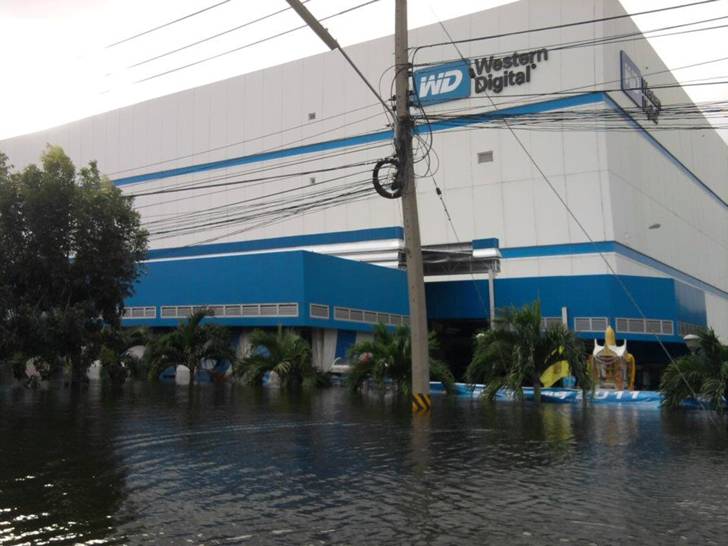
If you’re not aware, Thailand, the 2nd largest producer of hard drives in the world, has been experiencing some intense flooding which in turn has significantly depleted the worldwide supply of hard disk drives. Western Digital appears to be the worst hit and as result will likely lose its ranking as the #1 producer of disc drives.

Does this affect the data recovery business? YES, you may pay more.

The majority of Data Recovery cases require the replacement of various defective hard drive components and in particular the head assembly. These individual hard drive components cannot be bought on the open market and consequently data recovery companies source complete hard drives for breaking down into parts. This need for specific hard drive parts has in turn fostered a growing business in used hard drive sales. And while a disk drive may have originally sold for $79, these vendors have long been demanding double the price when supplying a data recovery service provider.

NOW, with the worldwide shortage of new hard drives, the used hard drive market is exploding and prices are exploding even more. Many data recovery companies will need to start charging higher rates to cover the increase in parts cost. However, Memofix Data Recovery Services sources 98% of its parts drives from our mother company Memofix Hitech Services and as a result we rarely need to order parts. Memofix has over 26,000 hard drives in stock and services up to 3000 new hard drive every month. With such a large supply we charge less, try harder and complete recoveries quicker. When it matters, call Memofix!

http://www.memofixdatarecovery.com/data-recovery-hard-drive.php

Laptop Hard Drive Crash

Wednesday, April 6th, 2011

An Unrecoverable Notebook Hard Drive

Many of the 2.5″ hard drives designed for laptop, notebook and netbook applications use glass platters. The glass platters can be manufactured with smoother and flatter surfaces which allow the heads to be flown closer to the disk surface. This in turn allows the manufactures to increase the density and store more data in the same space.
However, glass isn’t exactly known for its indestructibility and this picture illustrates the problems. This Western Digital laptop drive originally had two disks but the top disk has shattered into a hundred pieces. No useful data will be recoverable in this situation.

Laptop, Notebook, & Netbook Data Recovery

Friday, August 13th, 2010

Toronto GTA, Ontario, Canada. Data recovery from laptops, notebooks and netbooks is not that much different then recovering data from desktop systems. The most noticeable difference lies in the size of the storage device or hard disk drive being used by each computer. Most modern desktop computer systems uses a larger 3.5” HDD or hard disc drive while a typical laptop or notebook style computer will use a smaller 2.5” HDD. Additionally many newer notebooks and netbooks are starting to use SSD or Solid State Drives. This discussion will focus solely on hard drives.

While most people assume it’s tougher to recover data from a smaller 2.5” laptop hard drive versus the 3.5” desktop drive, it is actually the opposite in most circumstances. When data is lost due to a physical or mechanical issue with a hard drive, our historical statistics clearly show that 2.5” laptop or notebook hard drive owners have an almost 10% better chance of seeing their data again versus 3.5” desktop drives owners. In my previous life at another recovery company, this same statistic also held true. Hmm … seems strange, especially when I see some data recovery service companies adding a surcharge for dealing with laptop hard drives.

So why are we more successful with 2.5” hard drive recoveries? First 2.5” hard drives sustain less damage when they do crash and second they are more accepting of standard data recovery procedures.

Laptops, notebooks, netbooks AND 2.5” hard drives are designed to take more physical abuse then your typical desktop computer or hard drive. By design and virtue of their tiny mass, 2.5” hard drives can absorb anywhere from 3-5 times as much shock as a typical desktop drive. Portable computers also use shock absorbing mounting brackets to further isolate the hard drive from any external bumps or drops. These damage saving features decrease the severity of damage due to crashes.

Laptop and other portable computer manufactures are also concerned with decreasing the energy consumption and heat dissipation of their products. Fortunately, both of these pursuits provide additional benefits for preserving your data. For example, most laptops save energy by spinning down the hard drive when the laptop is not used for a predetermined period of time. And because hard drives are much more susceptible to damage when they are spinning, this energy saving feature can really save data. 2.5” laptop hard drives take it even a step further and use ramps to lift the heads physically off the disk surface when the drive is spun down while many 3.5” hard drives continue to land the heads on the surface of the disks or platters. Once again an energy saving feature that helps prevent damage to the disk. And there is also some validity in the argument that saving energy creates less heat which in turn causes less drive failures.

Laptop, notebooks and netbook drives are also much more tolerant of data recovery techniques. Head xplants or the process of replacing a bad head assembly with a good head assembly is one of the more commonly used data recovery techniques, but because each hard drive’s head assembly is ever so slightly different and the hard drives electronics were tuned to work specifically with the original head assembly, xplants are often not successful. However this procedure is much more successful when attempted between two 2.5” hard drives versus between two 3.5” hard drives.

Because 2.5” hard drives are principally used in portable devices that by definition will operated while the user is mobile, they are designed to deal with harsher conditions and recover from a larger range of off track data situations then a typical 3.5” hard drive. Consequently they are more accepting of new heads with their slight differences. You can compare it to a racing car and a jeep. The racing care is tuned for high performance and is capable of going very fast and taking corners at incredible speeds as long as the road is smooth. But when the road turns too dirt and mud the racing car gets stuck. On the other hand, the jeep may not go as fast but when the road gets rough, it’ll keep on going.

Media damage, whether disk or platter damage, head crashes, or rings forming on the disk are always a problem. And once again, we find 2.5” hard drives are just more tolerant of damage. As a method of preventing damage in the first place, 2.5” hard drives fly the heads at a greater height above the disks then 3.5” hard drives. This allows a laptop or notebook drive to take more physical abuse or impact without having it’s heads coming into contact with the disk surfaces. This design also allows them to float above damage that would impede the positioning or even damage the heads of a typical 3.5” hard drive and thus giving us a much better chance of recovering data.

So even though your laptop hard disk drive may be smaller then it’s big brother the desktop drive, it’s still the leader in data loss prevention and the better drive to be using should you ever need the services of a professional data recovery company, like Memofix Data Recovery Services. http://www.memofixdatarecovery.com/

… David Foster